Claude Desktop (Cowork)
Claude Desktop is Anthropic's official desktop app containing both Claude Cowork and Claude Code (CLI agent). By pointing it at a running Tresor instance, you can keep the Anthropic client experience while hot-switching the underlying model between Anthropic, DeepSeek, MiniMax, a local llama.cpp server, or any other configured downstream — all from the web UI.
No need to worry about the different API format underlying model is using, Tresor will auto-translate between the Anthropic API (Claude Desktop) to other API formats (e.g., gpt-5.5 using OpenAI Responses).
This page shows how to wire Claude Desktop to Tresor.
✅ Prerequisites
- Installed Tresor following installation guide.
- Claude app installed.
1. Configure Tresor
There are two ways to prepare Tresor:
- Web UI
- config.yaml
Web UI is more intuitive, but require more manual operations.
-
In "Downstreams" tab
- Click + Add Provider to add the LLM provider you are about to use.
-
In "Aliases" tab
-
Click + New Alias Group
- Input Model ID:
claude-opus.* - Checked "Regex Pattern"
- Select the Downstream and Output Model IDs you added previously.
- Input Model ID:
-
Repeat the above add new alias group process to add
claude-sonnet.*andclaude-haiku.* -
Click + Add Name:
- For alias
claude-opus.*: Add announced nameclaude-opus - For alias
claude-sonnet.*: Add announced nameclaude-sonnet - For alias
claude-haiku.*: Add announced nameclaude-haiku
WARNING: Unlike Claude Code's setup guide, announced names are required to allow Claude Desktop to detect available models!
- For alias
-
-
In "Settings" tab
- Click + Add API Key under "Proxy Authentication" section (e.g,
sk-proxy-123). Copy it, and we are about to fill it into "Gateway API key" in the following section.
- Click + Add API Key under "Proxy Authentication" section (e.g,
Editing yaml is less intuitive, but require less manual operations.
The following example config.yaml uses 3 downstream providers.
Replace them based on your actual providers.
bind_addr: 127.0.0.1:11510
proxy_api_keys:
- sk-proxy-123
... # Omitted showing other settings here
downstreams:
  - id: llama-cpp
    name: llama.cpp
    base_url: http://127.0.0.1:3000 # change to your actual llama.cpp listening port
    api_formats:
        - openai
        - anthropic
    output_model_ids:
        - qwen3.8:27b-coder
        - qwen3.8:27b:instruct
  - id: deepseek
    name: DeepSeek
    base_url: https://api.deepseek.com
    api_formats:
        - openai
        - openai_responses
        - anthropic
    output_model_ids:
        - deepseek-flash
        - deepseek-v4-pro
    is_enabled: true
    auth:
        type: api_key
        api_key: sk-YOUR-DEEPSEEK-API-KEY
    format_urls:
        anthropic: https://api.deepseek.com/anthropic
  - id: minimax
    name: MiniMax
    base_url: https://api.minimaxi.com/anthropic
    api_formats:
        - anthropic
    output_model_ids:
        - MiniMax-M2.5
        - MiniMax-M2.7
        - MiniMax-M3
aliases:
  - input_model_id: claude-opus.*
    is_regex: true
    announced_names:
        - claude-opus
        - claude-opus-5
    options:
      - id: alias-minimax-m3
        downstream_id: minimax
        output_model_id: MiniMax-M3
      - id: alias-deepseek-pro
        downstream_id: deepseek
        output_model_id: deepseek-v4-pro
  - input_model_id: claude-sonnet.*
    is_regex: true
    announced_names:
        - claude-sonnet
        - claude-sonnet-5
    options:
      - id: alias-llama-cpp-qwen-instruct
        downstream_id: llama-cpp
        output_model_id: qwen3.8:27b:instruct
      - id: alias-deepseek-flash
        downstream_id: deepseek
        output_model_id: deepseek-flash
      - id: alias-minimax-m2-7
        downstream_id: minimax
        output_model_id: MiniMax-M2.7
  - input_model_id: claude-haiku.*
    is_regex: true
    announced_names:
        - claude-haiku
        - claude-haiku-4-5
    options:
      - id: alias-minimax-m2-5
        downstream_id: minimax
        output_model_id: MiniMax-M2.5
Restart Tresor to apply the changes in yaml.
If a not-announced name like
claude-opus-4-8requests Tresor, the most precisely matched alias will still handle it (in this case,claude-opus.*). Optional announced names does not limit the capability of regex alias group's model name matching.
2. Configure Claude Desktop
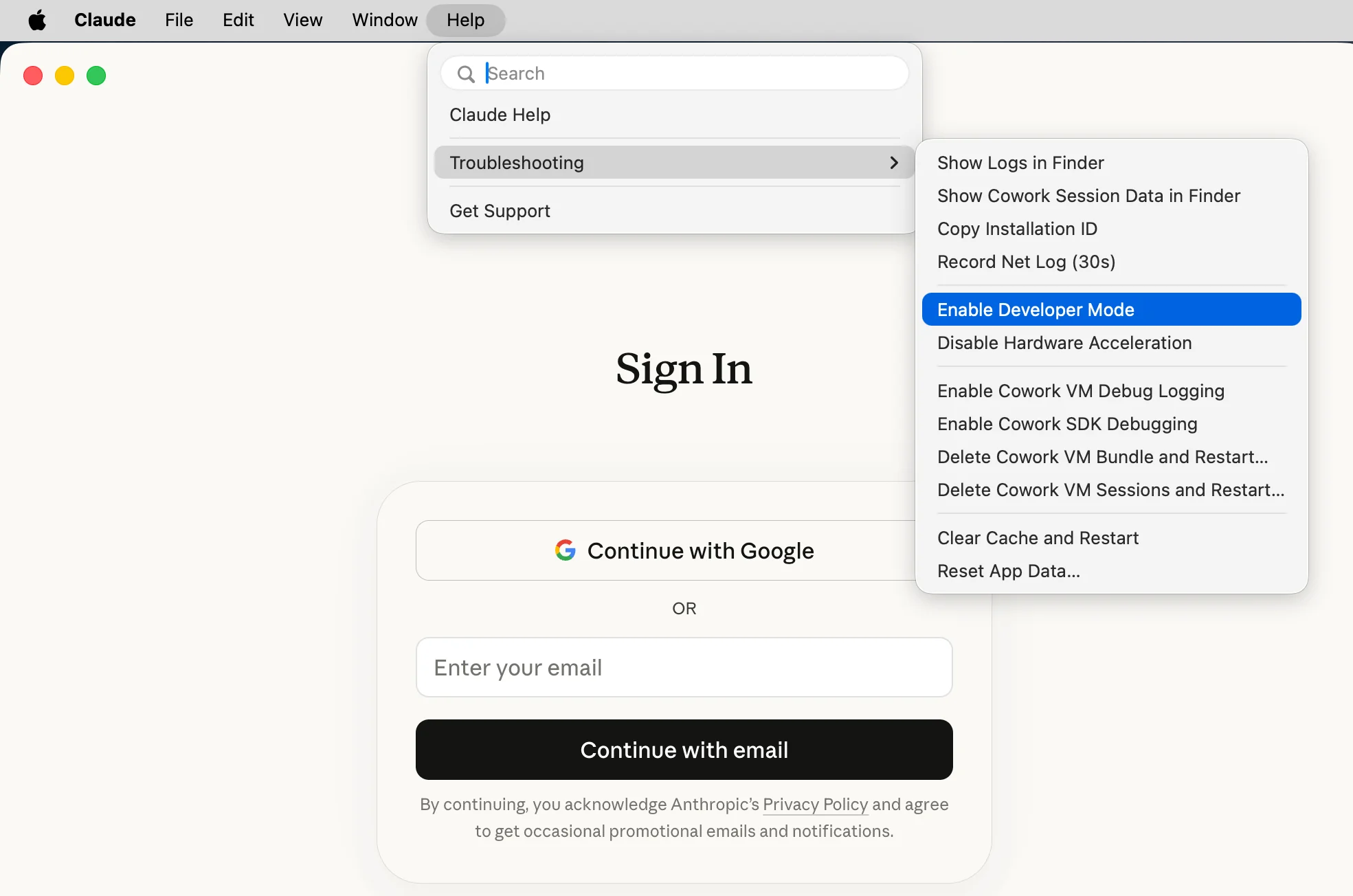
Step 1: Enable Developer Mode
Launch Claude Desktop — you do not need to sign in. Open Help > Troubleshooting > Enable Developer Mode. This adds a Developer menu to your menu bar.
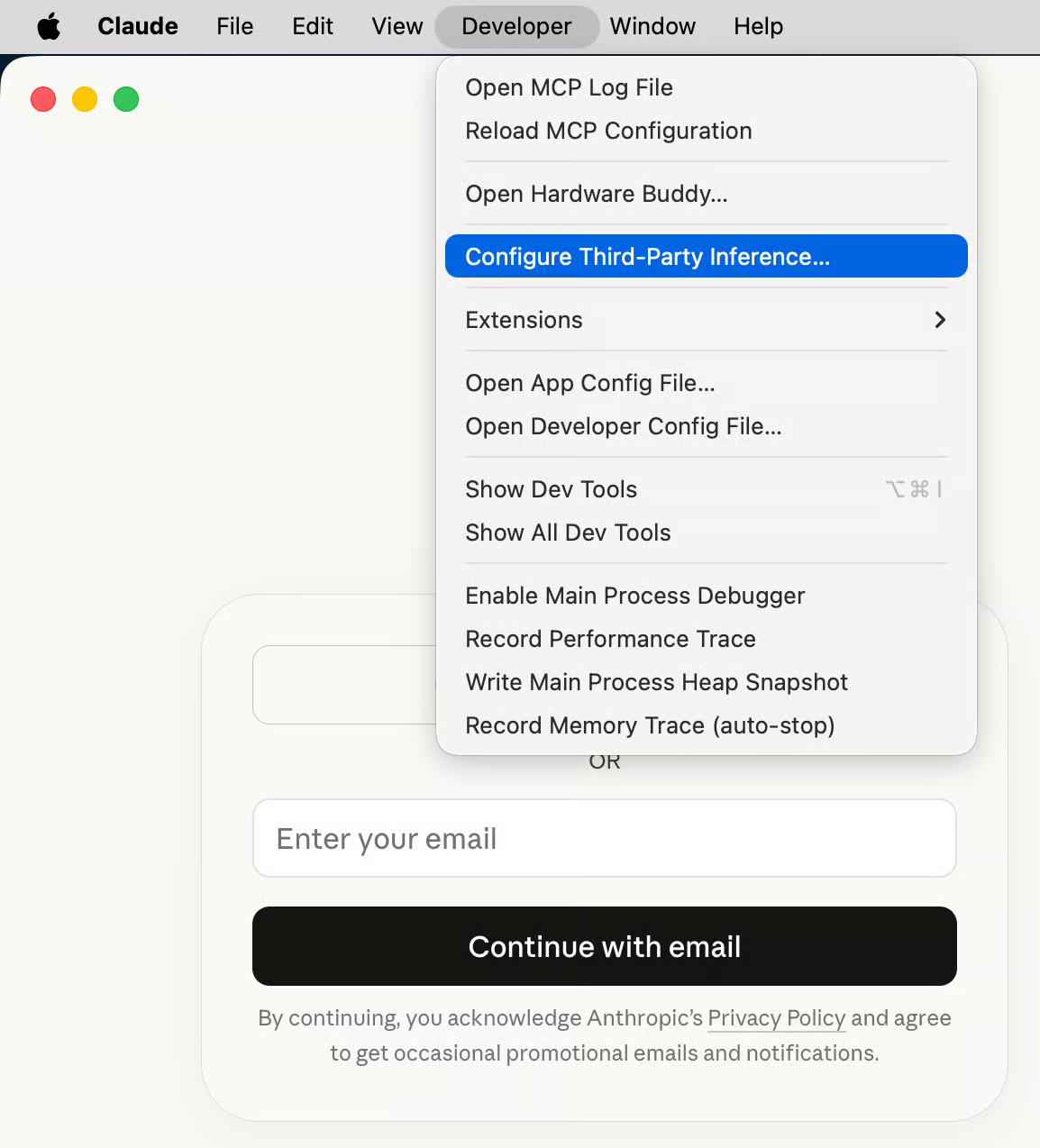
Step 2: Open Configure Third-Party Inference
Click Developer > Configure Third-Party Inference… in the menu bar
Step 3: Enter Gateway Credentials
Set the connection to Gateway and enter your Tresor credentials:
| Field | Value |
|---|---|
| Gateway base URL | http://127.0.0.1:11510 |
| Gateway API key | One of your Tresor API key in proxy_api_keys field (e.g., sk-proxy-123) |
| Gateway auth scheme | bearer |
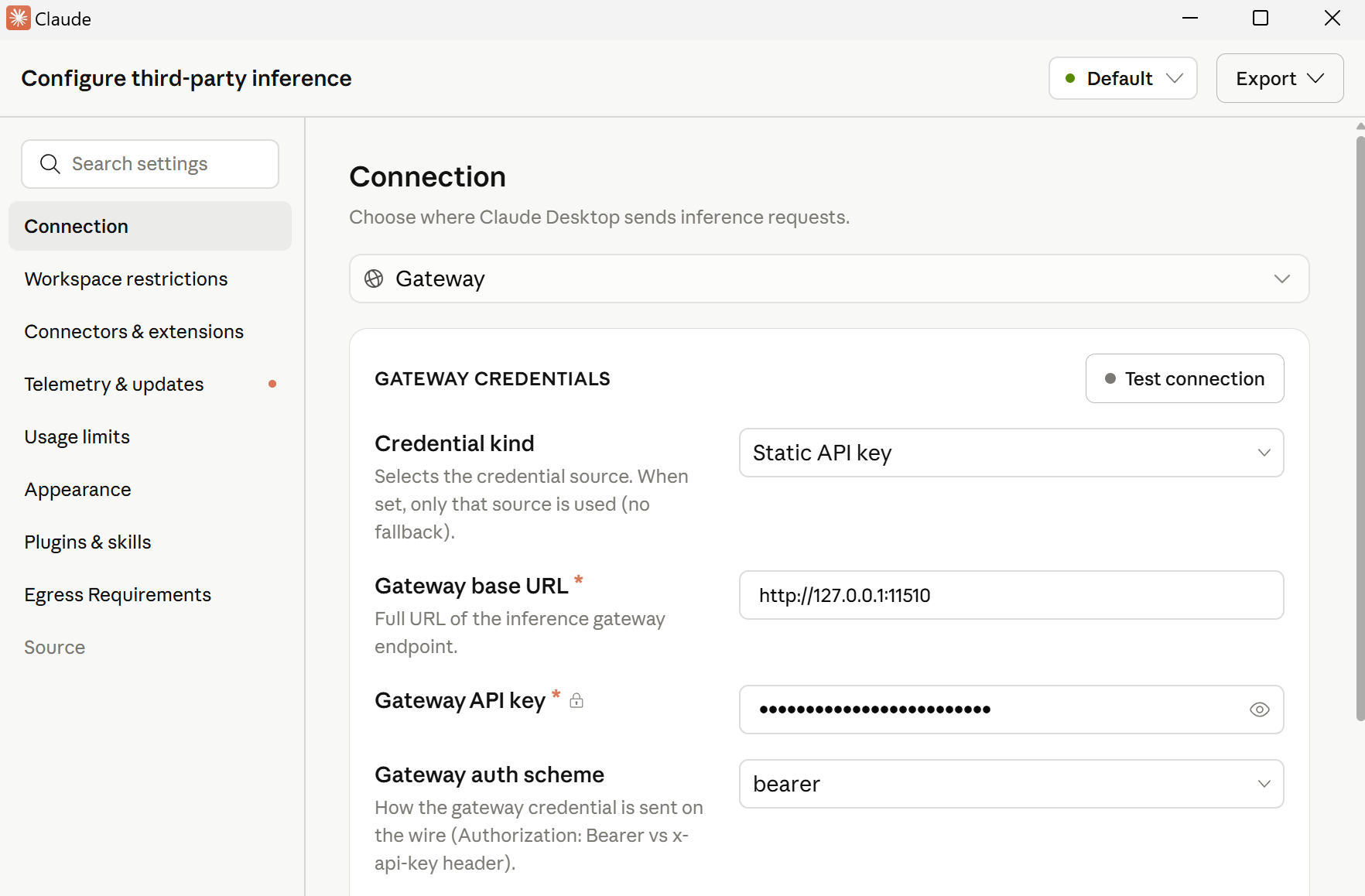
Click Apply locally to save your settings.
3. Launch Claude Desktop
Fully quit Claude Desktop and reopen it. On the start screen, choose Continue with Gateway (shown as “Local configuration”). No Anthropic account is needed.
The model picker will now display the models available through your Tresor connection (claude-opus, claude-sonnet, and claude-haiku).
4. Hot-switch from the web UI
Open http://127.0.0.1:11510 in a browser, go to the Aliases tab, and click any sibling option card to make it active.
Claude Desktop's next request will be routed to the new downstream — no restart of either Tresor or Claude Code is required. 🎉
For example, flip claude-sonnet from deepseek-flash to MiniMax-M2.7 with a single click, and the agent immediately starts using MiniMax on the following turn.
5. Using Web Search in Claude Desktop
Tresor is fully API-compatible with the Anthropic Messages endpoint, so the Web Search tool works the same way it does with the official Anthropic API: when Claude Desktop's model decides a question needs fresh information, it invokes the Web Search tool and the search runs through the active downstream provider.
If the active downstream is DeepSeek, the search and the summarising LLM call both go through DeepSeek, so each search may incur extra token cost (one extra LLM call to summarise the retrieved pages).
If the active downstream is a local llama.cpp server, Web Search is not available unless that backend exposes the tool itself.
📚 See also
- openrouter guide for Claude Desktop: Some images in this tutorial are taken from openrouter.
- LiteLLM guide for Claude Desktop